This guide explains how to set up Netvisor's new payroll management on a mobile device. The instructions focus on creating the Visma Connect link and activating strong authentication to enable mobile app usage. Finally, instructions are provided for logging into the mobile app's new payroll view.
Table of Contents
Visma Connect linking
The first steps are recommended to be done on a computer, but they can also be completed on a phone.
- Go to https://accountsettings.connect.visma.com/ using your browser.
- Log in using the same email address that was used to add you to the new payroll system.
- If you haven't added a password to Visma Connect, the system will ask you to create one.
- Select the one-time code option.
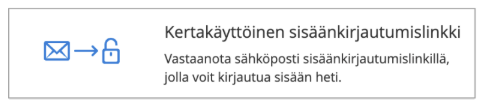
- After requesting the code, you will receive an email stating "Hi, You have requested to sign in to your Account Settings account".
NOTE: It may take 2-3 minutes for the Visma Connect message to arrive, so please wait a moment.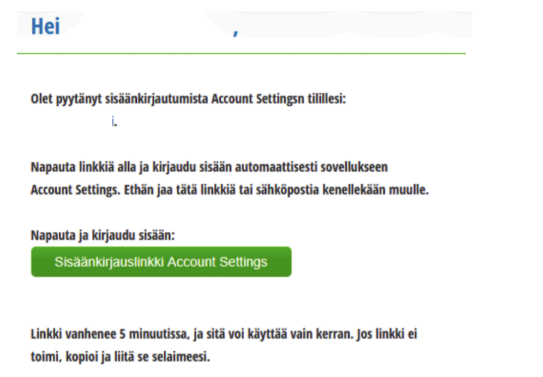
- Click the "Sign-in link to Account Settings" in the email to be logged into the application automatically.
- Note: The link expires in 5 minutes and can only be used once. If the link doesn't work, copy and paste it into your browser.
- In the Visma Connect service, find the "Electronic Identification" section (second from the top).
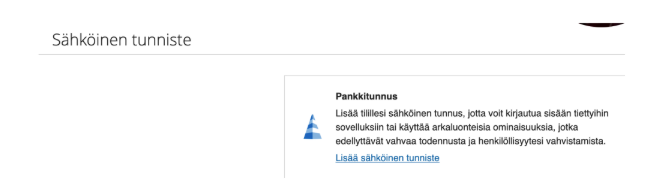
- Link your bank by clicking "Add electronic identification" and complete the authentication process that opens.
- Be aware of additional emails during the process:
- The first message notifies you that the account has been logged into. You can ignore this message.
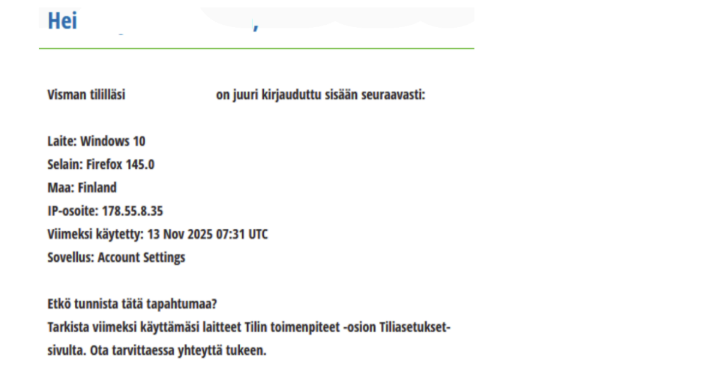
- The subsequent message contains a 6-digit security code required to finalize the linking.
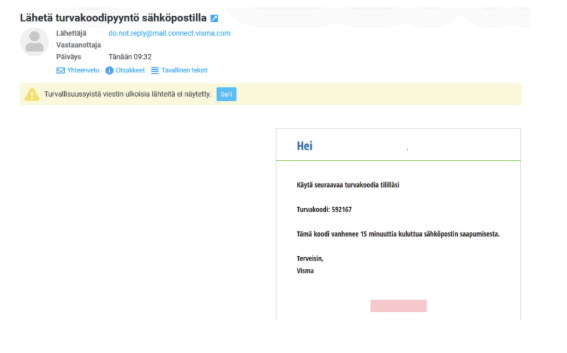
- Note: The code expires 15 minutes after the email arrives.
- The first message notifies you that the account has been logged into. You can ignore this message.
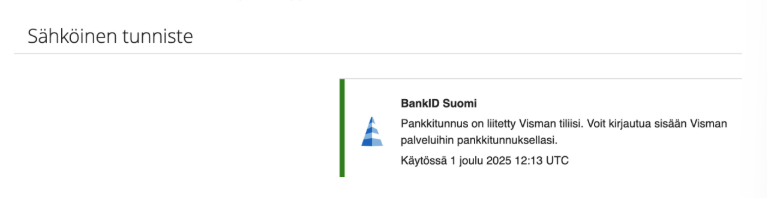
- Confirm that the successful link appears in the Visma Connect service as "BankID Finland - Bank ID is linked to your Visma account".
Logging into the mobile app
Device App Store > Netvisor Mobile App
- Once the linking is complete, proceed by installing the Netvisor mobile app.
- If the app was already in use before linking, open the app, but on the PIN code entry page, select "Log out" from the top right corner.
- Log into the Netvisor mobile app again.
- After logging in, verify that the new Netvisor payroll view opens for you.
Frequently Asked Questions
Question: What should I do if the Visma Connect sign-in link doesn't work?
Answer: If the link doesn't work by clicking it, copy and paste it into your browser. Remember that the link expires in 5 minutes.
Question: Can I complete the linking directly on my phone?
Answer: Yes you can, although the first steps are recommended to be done on a computer.
Question: Why don't I see the new payroll view even though I already have the mobile app?
Answer: If the app was in use before linking, you must log out from the top right corner of the PIN code page and then log back in.
Question: How long is the security code valid?
Answer: The 6-digit security code received via email expires 15 minutes after the message arrives.
Keywords: Netvisor, payroll, mobile app, Visma Connect, linking, electronic identification, security code, sign-in link, strong authentication, BankID.
Did you find it helpful? Yes No
Send feedback