This guide is designed to help you set up and manage payroll settings in the Netvisor system. The guide covers various aspects of payroll, such as salary types, salary bases, working hours record types, and table values. The payroll settings view has four different tabs.
CONTENT
Salary types
Salary types are the foundation of payroll and contain formulas for calculating salaries. This section provides guidance on how to manage and create new salary types.
You can view and edit salary types by selecting Payroll settings -> Salary types. The view contains a table with information in different columns. You can access the settings of an individual salary type by clicking on the salary type name.
Creating a new salary type
You can create a new salary type that meets the needs of your company.
- Start by selecting New salary type.
- Fill in the following basic data:
- Name: The name of the salary type. This is a mandatory field.
- Name in English: The name of the salary type in English.
- Name in Swedish: The name of the salary type in Swedish.
- Category: Select the category of the salary type. This is a mandatory field.
- Used in salary groups: Specify in which salary groups the salary type is used.
- Define Payslip calculation settings:
- Source: Choose how the salary type is calculated (e.g., formula, salary base). The source can also be source-free, meaning no source. In this case, the salary type does not automatically retrieve a value from the program, and the user manually enters the value on the payslip.
- Formula: If you selected formula as the source, the value of the salary type is formed using a calculation formula. You can edit it with the Formula editing view button. The calculation formula can be given with numerical values or by selecting formula elements from the program's record types and salary types. The formula element list opens by typing a quotation mark (") in the quantity or unit price field.
- Salary base: If you selected salary base as the source, choose the correct salary base from the dropdown menu. The salary bases visible in the dropdown menu come from the program's Salary bases view.
- Partial month division rule: Define how the salary is divided if the employment has lasted only part of the month.
- Define income type and insurance handling:
- Income type: Select the income type. This is a mandatory field if the category is not “Auxiliary salary type” or “Correction”.
- Other fringe benefit type: If the income type is 317, select the fringe benefit type. This is a mandatory field.
- Daily allowance type: If the income type is 331, select the daily allowance type. This is a mandatory field.
- Insurance payments: Define insurance payments if necessary.
- Define bookkeeping settings:
- Debit account: Select the default debit account. This is a mandatory field.
- Credit account: Select the default credit account. This is a mandatory field.
- Save the new salary type by selecting Save changes.
Editing a salary type
Find the desired salary type from the list and click on it.
This opens the Edit salary type view, where you can update the following information:
- Basic information: Name, Category, Used in salary groups.
- Type: The type of salary type is either default or customized.
- Payslip calculation settings: Source, Formulas, Partial month division rule.
- Income type and insurance handling: Income type and insurance payments.
- Bookkeeping: Debit and Credit accounts.
Save changes by selecting Save changes.
Filtering salary types
You can filter the list of salary types in various ways to quickly find the information you need.
- Select Search and filter to open the filter panel.
- You can use the following filters:
- Search: Free text search by salary type name.
- Table: Filter by payslip section (e.g., Monetary pay, Gross pay).
- Category: Filter by salary type category (e.g., Salaries and bonuses, Holidays and absences).
- Type: Filter by whether the salary type is a system default or customized.
- In use: Filter by whether the salary type is in use or not.
- Salary group: Filter by salary group.
- Source: Filter by calculation source (e.g., Formula, Salary base).
- Income type: Filter by income type.
- Insurance: Filter by insurance type (e.g., Pension insurance, Accident insurance).
Salary bases
Salary bases are employee-specific values used in payroll calculation. This section explains how to create and manage salary bases.
You can view and edit salary bases by selecting Payroll settings -> Salary bases. The view contains a table with information in different columns.
Creating a new salary base
You can create a new salary base that can be used in salary type formulas.
- Start by selecting New salary base.
- Fill in the following basic data:
- Name: The name of the salary base. This is a mandatory field.
- Name in English: The name of the salary base in English. This is a mandatory field.
- Name in Swedish: The name of the salary base in Swedish.
- Unit: Select the unit (e.g., euro (€), percent (%), or piece (pcs)). This is a mandatory field.
- Save the new salary base by selecting Create new salary base.
Editing a salary base
- Find the desired salary base from the list and select Edit at the end of the row or click on the salary base name.
- You can update the following information:
- Name and Name in English.
- Unit.
- In use checkbox allows you to activate or deactivate the salary base.
- Save changes by selecting Save changes.
Filtering salary bases
- Select Search and filter to open the filter panel.
- You can use the following filters:
- Search salary bases: Free text search.
- Unit: Filter by unit (Euro, Percent, Piece).
- Type: Filter by type (Default, Custom).
- In use: Filter by bases that are in use or not in use.
- Used in salary types: Filter by which salary types the base is related to.
Deleting a salary base
You can delete a salary base if it is no longer needed.
- Find the salary base to be deleted and click the three-dot button at the end of the row.
- Select Delete.
- Confirm the deletion by selecting Delete.
Time record types
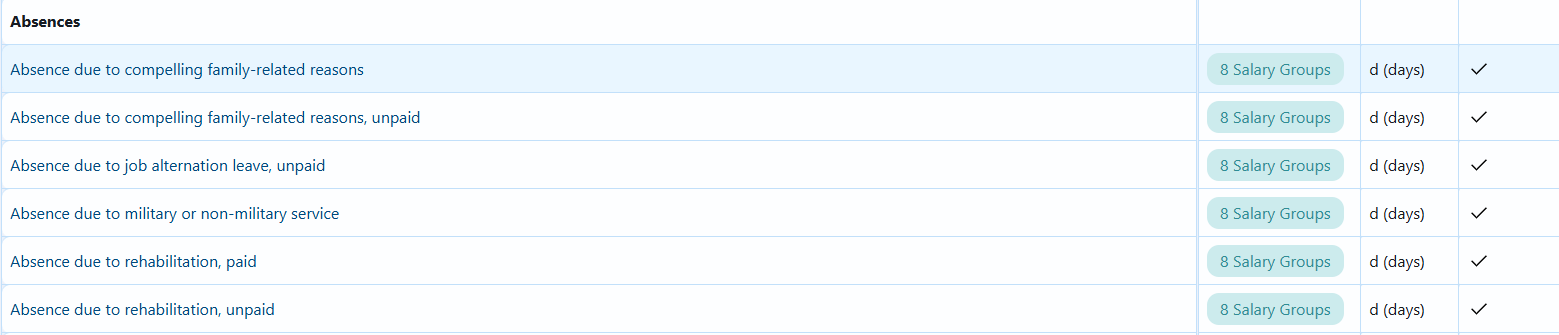
Time record types define what kind of working hours records employees can make. This section teaches you how to manage and create new record types.
You can view and edit time record types by selecting Payroll settings -> Time Record types.
Creating a new time record type
You can create a new time record type that meets your company's working hours recording needs.
- Start by selecting New time record type.
- Fill in the following basic data:
- Name in Finnish: The name of the record type in Finnish. This is a mandatory field.
- Name in Swedish: The name of the record type in Swedish.
- Name in English: The name of the record type in English.
- Add to salary groups: Select the salary groups to which the record type belongs.
- Define record settings:
- Unit of time Record: Select the unit (e.g., hours, days). This is a mandatory field.
- Allow decimal usage: Allow the use of decimal values in piece records.
- Specification text: Define whether the specification is mandatory, optional, or not allowed. This is a mandatory field.
- Define calculation settings:
- Type: Select the type of record (e.g., hour record, overtime record).
- Affects annual holiday accumulation: Define whether the record type affects annual holiday accrual.
- Used in flexitime calculation: Define whether the record type is used in flexitime balance calculation.
- Affects working hours: Define whether the record type affects the working hours.
- Accumulates annual leave: Define whether the record type accumulates annual leave.
- Save the new record type by selecting Create new.
Editing a record type
- Find the desired record type and click on it to open the editing view.
- You can edit all record type information, such as name, salary groups, and calculation settings.
- Save changes by selecting Save changes.
Filtering record types
You can filter record types in two ways:
- Search time record type: Free text search by record type name.
- Filter by salary groups: Select one or more salary groups by which you want to filter the view.
Table values
Table values are used in salary type formulas. They are company-specific values, such as the amount of lunch benefit. This section explains how to manage these values.
You can view and edit table values by selecting Payroll settings -> Time Record Types.
Managing table values
You can view and filter table values based on different criteria.
- Use the Search and filter function to find specific table values.
- You can filter values based on the following criteria:
- Type: Default or customized.
- In use: Yes or no.
- Salary type: Select the salary type to which the value is related.
Frequently asked questions (FAQ)
How can I edit an existing salary type? Find the desired salary type from the list and click on it. This opens the editing view where you can make the necessary changes. Save the changes at the end.
Why can't I delete a salary base? You cannot delete a salary base if it is used in salary types or if it is a system default base.
How can I see which salary types use a specific salary base? Select the desired salary base. You will see a list of salary types that use that base.
How does the formula editing view work? In the formula editing view, you can create and edit complex calculation formulas. You can use existing salary types, salary bases, and other values to build formulas. Always check the correctness of the formula before saving.
What should I do if I receive the error message “There are errors in the form. Correct the highlighted sections."? This error message means that a mandatory field has been left unfilled or the entered information is incorrect. Check the fields highlighted in red on the form and correct them.
What does “Field is mandatory” mean? This means that you cannot save the form until you have filled in the field.
Why can't I edit a system default salary type? System default salary types cannot be edited to ensure the correctness of basic payroll functions. However, you can copy a default salary type and edit the copy according to your needs.
How can I view all table values in use by the company? Go to Payroll settings -> Table values. You will see a list of all table values in use. You can use filters to refine your search.
Keywords
payroll, settings, salary types, salary bases, time record types, table values, formulas, creation, editing, deletion
Did you find it helpful? Yes No
Send feedback